How to Share Your Discord Profile with Anyone
Learn how to create a shareable link to your Discord profile that works for anyone — even people who don't use Discord. No app required.
The Problem with Sharing Discord Profiles
Discord doesn't make it easy to share your profile with people outside the app. There's no public profile URL that works in a web browser. If you send someone your Discord username, they need to open the Discord app, navigate to "Add Friend," and type it in — and they need a Discord account to do any of that.
This creates a gap. You want to show someone your Discord identity, but they either don't have Discord or aren't near the app. You're left copy-pasting your username into a message and hoping they figure it out.
discord.dog solves this by creating a public, shareable web page for every Discord profile.
Method 1: Share Your discord.dog Link
The simplest approach is to share a discord.dog URL. Every Discord user has one automatically.
Using Your User ID
- Find your Discord user ID (see how to find your Discord user ID)
- Your profile URL is
discord.dog/{yourUserId} - Share this link anywhere — it works in any web browser
Example: discord.dog/125476553571303424
Anyone who opens this link sees your full Discord profile — avatar, display name, bio, badges, connections, and live status — without needing Discord.
Using Your Username
If your Discord username is unique enough, you can also share:
discord.dog/yourusername
discord.dog resolves usernames to profiles. This is shorter and more memorable than a numeric ID, but usernames can change. For a permanent link, use your user ID.
Using a Custom Vanity URL
For the cleanest link, sign in to discord.dog and set a custom slug:
- Go to discord.dog and sign in with Discord
- Open your dashboard
- Set a custom vanity slug (e.g., "luke")
- Your profile is now at
discord.dog/luke
Custom slugs are first-come-first-served and permanent as long as you keep them. They're the best option for a profile link you'll use long-term.
Method 2: Embed a Profile Card
If you want to display your Discord profile visually — on a website, GitHub README, forum signature, or anywhere that renders images — discord.dog generates embeddable profile card images.
Quick Embed
Append .png to any discord.dog profile URL to get a profile card image:
https://discord.dog/125476553571303424.png
This returns a rendered image of your profile card that can be embedded anywhere.
Custom Embed Builder
For more control, use the embed builder:
- Visit
discord.dog/embed - Enter your user ID
- Customize the card: font, colors, displayed data, badge visibility, dimensions, corner roundness, gradient
- Copy the embed URL and code snippets (HTML, Markdown, BBCode)
The embed builder generates a URL that returns a live-updating profile card image. When your Discord status changes, the image updates automatically. See the Discord profile embed guide for the full walkthrough.
Embed in a GitHub README
To add your Discord profile card to a GitHub README:
[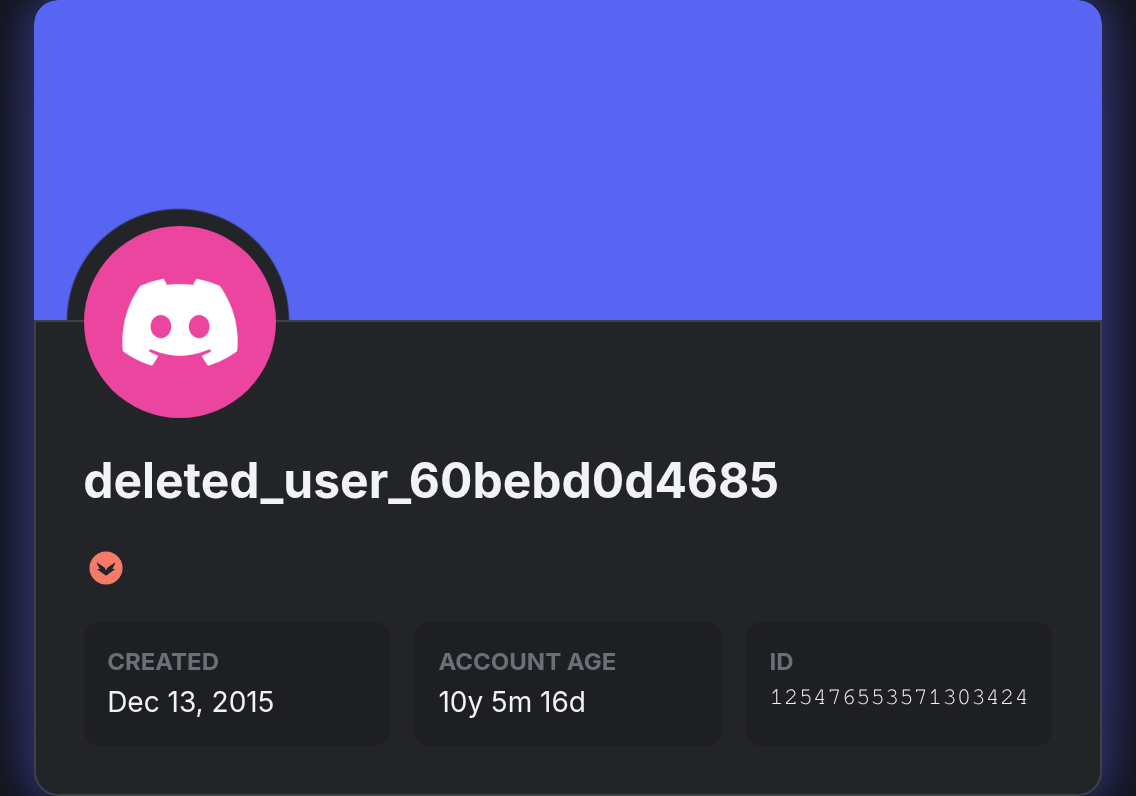](https://discord.dog/125476553571303424)
This renders the profile card as a clickable image that links to your full discord.dog profile.
Method 3: Discord's Built-in Sharing
Discord does have some built-in sharing mechanisms, but they're limited:
- Copy Profile Link — Discord lets you copy a link like
https://discord.com/users/125476553571303424. This only works inside the Discord app. Opening it in a browser redirects to a download page, not a profile. - QR Code — Discord mobile has a QR code feature for adding friends. This requires both people to have Discord open.
- Username sharing — You can tell someone your username, but they need Discord to look you up.
None of these work for someone without Discord installed. That's the gap discord.dog fills.
Try it yourself — no login needed
Paste any Discord user ID, username, or invite link at discord.dog. Full profiles, live presence, and server previews in seconds.
Open discord.dogUse Cases for Sharing Your Discord Profile
Social Media Bios
Add your discord.dog link to your Twitter, Instagram, TikTok, or LinkedIn bio. Followers can click it and see your Discord presence — what you're playing, listening to, your online status — without needing your friend code.
Portfolios and Resumes
Developers, designers, and creators who use Discord as a professional communication tool can link to their discord.dog profile. It shows linked connections (GitHub, Twitter, etc.), badges that demonstrate engagement, and account age that indicates credibility.
Forum Signatures
Many forums support image embeds in signatures. Use the discord.dog embed to display a live-updating Discord profile card in your forum signature. It shows your current status and activity.
Email Signatures
Add a small discord.dog link or embedded profile card to your email signature. Recipients can check your Discord profile and reach out without you needing to manually share credentials.
Community Applications
When applying to join a Discord community that requires vetting, sharing your discord.dog profile gives moderators a quick way to review your account — badges, age, connections — without needing to friend you or share a server.
What Your Shared Profile Shows
When someone visits your discord.dog link, they see:
- Avatar — full resolution, animated if you have Nitro
- Display name and username
- Bio (About Me text)
- Badges — Nitro, HypeSquad, Early Supporter, Active Developer, etc.
- Connected accounts — GitHub, Spotify, Steam, Twitch, and more
- Live status — online, idle, DND, or offline
- Current activity — Spotify track, game, custom status
- Account creation date
- Profile banner and theme colors (if set)
All of this updates in real time. If you start playing a game or switch to a new Spotify track, visitors see it change live on the page.
Privacy Considerations
discord.dog only displays information that Discord makes publicly available through its API. It does not expose:
- Private messages
- Server membership lists (unless you're in a mutual server with the bot)
- Email address
- IP address or location
- Any data you haven't made public on Discord
If you've set your connections to private in Discord's settings, they won't appear on discord.dog. You control what's visible through Discord's own privacy settings.
For discord.dog dashboard users, additional visibility toggles let you hide specific sections — badges, connections, activity — from your public profile. See the profile viewer guide for details on what data is available and how it's sourced.
Frequently Asked Questions
Can I share my Discord profile with someone who doesn't have Discord?
Yes. discord.dog creates a public web page for any Discord profile. Share your discord.dog link (e.g., discord.dog/yourusername) and anyone can see your avatar, bio, badges, connections, and status — no Discord app or account needed.
How do I get a custom URL for my Discord profile?
Sign in to discord.dog with your Discord account and set a custom vanity slug in your dashboard. This gives you a clean URL like discord.dog/yourname instead of discord.dog/125476553571303424.
Can I embed my Discord profile on my website?
Yes. discord.dog provides an embed builder at /embed where you can generate a customizable profile card image. You get an embeddable URL and copy-paste code snippets for HTML, Markdown, and BBCode.
Does sharing my discord.dog link expose private information?
No. discord.dog only shows information that Discord makes publicly available through its API — your avatar, username, display name, badges, and any connections or bio you've chosen to make public on your Discord profile. Private messages, server memberships, and other private data are never exposed.
Try it yourself — no login needed
Paste any Discord user ID, username, or invite link at discord.dog. Full profiles, live presence, and server previews in seconds.
Open discord.dog