Discord Banner Size & How to Set One (Complete Guide)
The complete guide to Discord banner sizes — user profile banners, server banners, and invite splash images. Dimensions, requirements, and design tips.
Discord Banner Types
Discord uses banners in three distinct places, each with different size requirements and unlock conditions. Understanding which banner you need — and what it takes to enable it — saves time and avoids uploading images at the wrong dimensions.
The three banner types are: user profile banners, server banners, and server invite splash backgrounds.
User Profile Banner
The user profile banner is the horizontal image displayed at the top of your profile card. It appears when someone clicks your name to view your profile in Discord, and on your discord.dog profile page.
Dimensions
| Specification | Value |
|---|---|
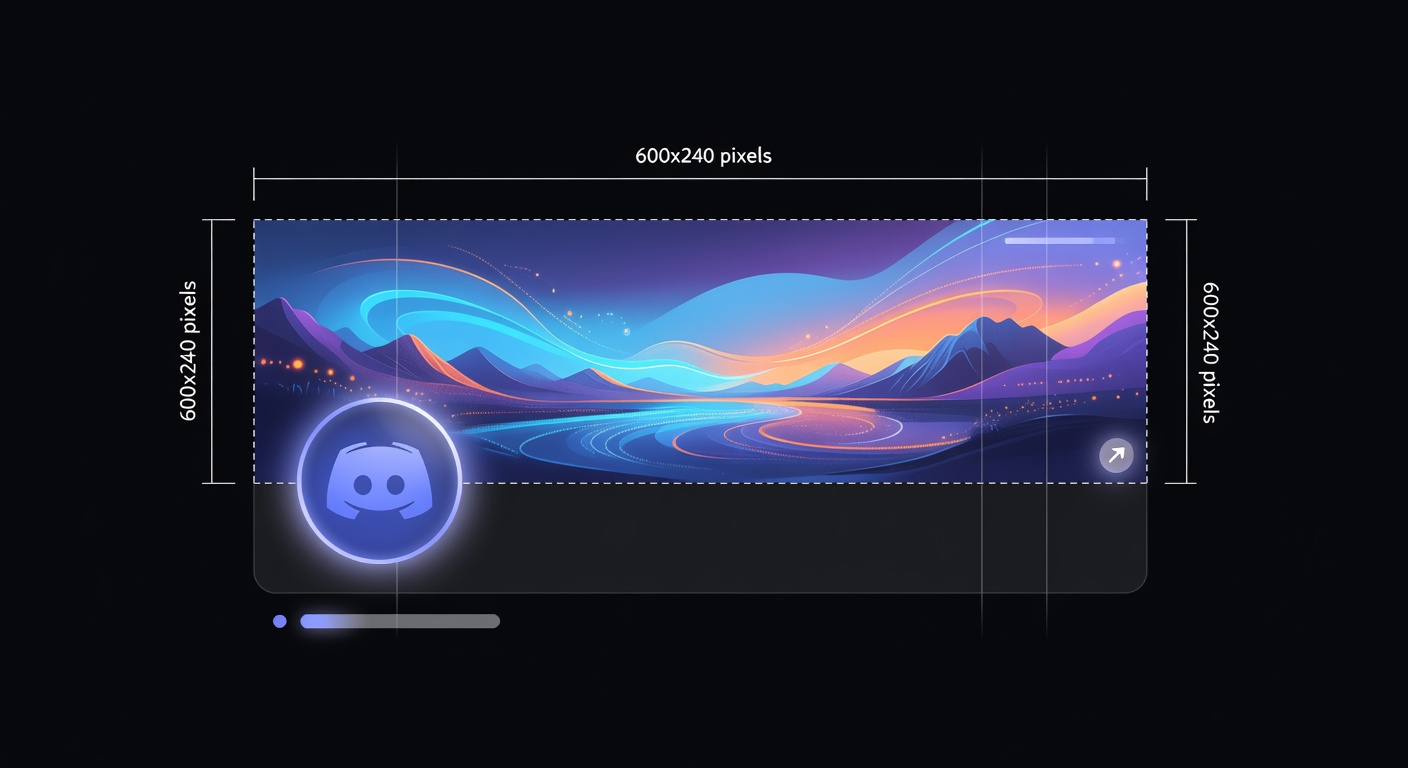
| Minimum size | 600x240 |
| Recommended size | 960x540 |
| Aspect ratio | ~2.5:1 to 16:9 |
| Max file size | 10MB |
| Formats | PNG, JPEG, WebP, GIF (Nitro only) |
Discord crops the banner to fit different display contexts. The profile panel on desktop shows a wider, thinner strip than the full profile popup. Design your banner with the center as the focal point — edges are more likely to be cropped depending on the viewer's screen.
Requirements
User profile banners require Discord Nitro (any tier). Without Nitro, you can set a solid accent color as your profile background, but not an image.
Animated GIF banners require full Nitro — Nitro Basic doesn't support animation on banners.
How to Set a Profile Banner
- Open Discord and go to User Settings (gear icon)
- Click Profiles in the left sidebar
- Click the banner area at the top of the profile preview
- Upload your image
- Adjust the crop position if needed
- Save changes
The banner applies globally — it shows everywhere your profile is viewed, including on discord.dog. You can change it at any time.
Banner vs. Accent Color
Users without Nitro see a solid color behind their avatar on the profile card. This color is either auto-generated from their avatar or manually set in profile settings. Nitro users can set both a banner image and an accent color — the accent color serves as a fallback if the banner fails to load.
On discord.dog, both the banner image and accent color are displayed when available. If a user has a banner, it appears at the top of the profile page. If they only have an accent color, a color gradient is shown instead.
Server Banner
Server banners appear at the top of the channel list sidebar and in the server's invite screen. They give the server a visual identity beyond just the server icon.
Dimensions
| Specification | Value |
|---|---|
| Recommended size | 960x540 |
| Aspect ratio | 16:9 |
| Max file size | 10MB |
| Formats | PNG, JPEG, WebP, GIF |
Requirements
Server banners require the server to reach Boost Level 2 (7 boosts). Only users with Manage Server permission can set the banner.
How to Set a Server Banner
- Open Server Settings (requires Manage Server permission)
- Go to Overview
- Scroll to the Server Banner section
- Upload your image
- Save changes
The banner appears in the channel sidebar for all server members and in the invite preview when someone receives an invite link.
Server Invite Splash
The invite splash is a full-screen background image that appears on the server's invite page — the screen users see before clicking "Accept Invite." It creates a strong first impression for new members.
Try it yourself — no login needed
Paste any Discord user ID, username, or invite link at discord.dog. Full profiles, live presence, and server previews in seconds.
Open discord.dogDimensions
| Specification | Value |
|---|---|
| Recommended size | 1920x1080 |
| Aspect ratio | 16:9 |
| Max file size | 10MB |
| Formats | PNG, JPEG |
Requirements
The invite splash background requires the server to reach Boost Level 1 (2 boosts). This is a lower requirement than the server banner.
How to Set an Invite Splash
- Open Server Settings
- Go to Overview
- Scroll to the Invite Splash Background section
- Upload your image
- Save changes
Design Tips for Discord Banners
Profile Banners
Keep it simple. The banner is displayed at a relatively small size on the profile card, and important content (avatar, username, badges) overlays part of it. Busy or detailed images get lost.
Use dark or muted colors. Discord's interface is predominantly dark-themed. Banners with very bright or high-contrast colors can clash with the surrounding UI. Darker banners blend naturally.
Mind the avatar overlap. Your avatar sits on top of the lower-left portion of the banner. Make sure there's no important content in that area, or it will be obscured.
Test both light and dark theme. While most Discord users use dark theme, some use light. Check that your banner looks acceptable on both.
Server Banners
Include the server name or branding. Server banners appear in the sidebar where they're contextual. Including the server name, logo, or mascot reinforces server identity.
Account for transparency. The server banner in the sidebar has UI elements overlaid on top (channel list, buttons). Keep important visual elements toward the center-top of the image.
Invite Splash Images
Go for impact. The invite splash is the largest banner type and is seen full-screen. Use high-resolution images and bold design. This is your server's first impression.
Keep text minimal. Discord overlays its own invite UI (server name, member count, accept button) on top of the splash. Adding your own text can create visual conflict.
Viewing Banners on discord.dog
discord.dog displays user profile banners on every profile page. When you visit discord.dog/{userId}, the banner appears at the top of the profile card, exactly as it would in Discord.
For users without a banner, discord.dog displays the accent color gradient. For users with animated banners, the animation plays automatically.
Server banners are visible when previewing servers on discord.dog. Enter a server ID or invite code to see the server's banner, icon, and other visual elements.
View any profile banner now → Visit discord.dog and enter a user ID to see their full profile including banner. Check out the profile viewer guide or the PFP viewer guide for more on viewing Discord profile visuals.
Frequently Asked Questions
What size should a Discord profile banner be?
Discord recommends 600x240 pixels as the minimum for profile banners, but 960x540 provides better quality on larger screens. The banner is displayed as a wide, horizontal strip at the top of your profile card. Upload at the highest resolution you can for the best results.
Do I need Nitro for a Discord profile banner?
Yes. User profile banners are a Discord Nitro feature (both Nitro Basic and full Nitro). Without Nitro, you can only set a solid accent color as your profile background. Server banners require Boost Level 2, not Nitro.
Can I use an animated GIF as my Discord banner?
Yes, but only with a full Discord Nitro subscription. Nitro Basic does not support animated banners. The animated GIF follows the same dimension recommendations and the 10MB file size limit.
What size is a Discord server banner?
Discord server banners should be 960x540 pixels (16:9 aspect ratio). Server banners require the server to have Boost Level 2. The banner appears at the top of the server's channel list and in the server invite screen.
Try it yourself — no login needed
Paste any Discord user ID, username, or invite link at discord.dog. Full profiles, live presence, and server previews in seconds.
Open discord.dog